Knowledge Worker 2022 - Default
Overview
The Knowledge Worker workload is designed for 2(v)CPU environments, offering a well-balanced intensive workload that smoothly stresses the system, resulting in increased CPU, RAM, and IO usage.
The Knowledge Worker profile is included out of the box for new Login Enterprise deployments. For users upgrading from previous versions, ensure you refer to our GitHub repository for the latest scripts and updates.
For a breakdown of the steps completed as part of the Knowledge Worker workload, see the attached PDF under Additional resources.
For information on the Knowledge Worker 2025, see the Knowledge Worker 2025 Overview.
Using the Workload
To utilize the workload effectively, follow these steps:
Creating an Application Group
-
Create an application group where a set of applications will be defined in a specific order with enabled specific application properties.
- Each application within the group should be imported separately.
-
Add the application group to a test.
Note: This process can also be directly integrated into a test environment.
Adding Applications to the Group
Each application is represented as a separate script file (.cs file). For each script file:
-
Create the application with the specified type and target noted at the beginning of the file.
-
Upload the script file to the application.
Configuring the Application Group
Arrange the applications within the application group according to the specified order and properties as defined in the table below.
| Application | Run once | Leave application running | Type | Target |
|---|---|---|---|---|
| KW_PrepareOffice365 | Enabled | Disabled | Windows Application | winword.exe |
| KW_Outlook | Disabled | Enabled | Windows Application | outlook.exe /importprf %TEMP%\LoginPI\outlook.prf |
| KW_Edge | Disabled | Disabled | New Microsoft Edge | N/A |
| KW_Excel | Disabled | Enabled | Windows Application | excel.exe |
| KW_PowerPoint | Disabled | Enabled | Windows Application | powerpnt.exe |
| KW_Word | Disabled | Enabled | Windows Application | winword.exe |
| KW_Close Excel | Disabled | Disabled | Windows Application | excel.exe |
| KW_Close PowerPoint | Disabled | Disabled | Windows Application | powerpnt.exe |
| KW_Close Word | Disabled | Disabled | Windows Application | winword.exe |
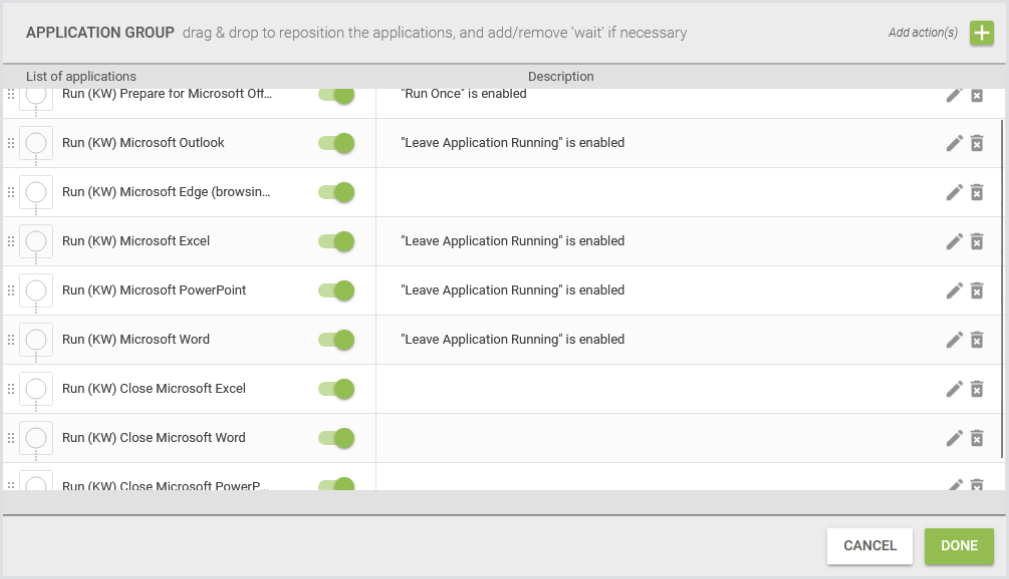
Example of a Сonfigured Application Group
This screenshot displays the default Application Groups for the Knowledge Worker as of Login Enterprise 5.11.

Clicking the edit button (pencil icon) for each group reveals the applications included and their specified order.
Additional Resources
-
For managing application behavior in Login Enterprise, see Configuring Applications for Testing.
-
To learn more about the Task Worker Workload, see the Task Worker Workload.
\