System Requirements
Overview
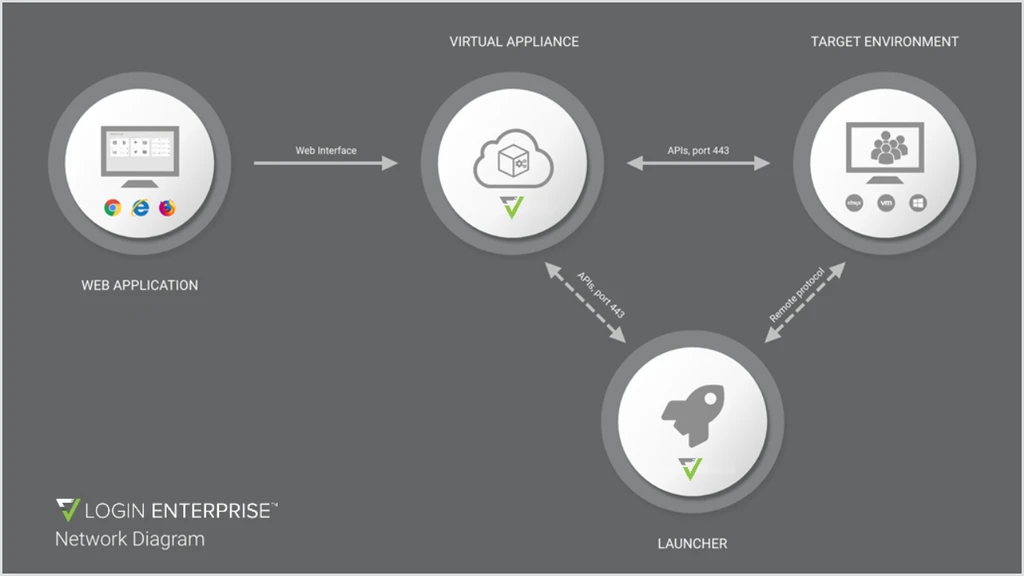
This section outlines the requirements for a successful implementation of the Login Enterprise Virtual Appliance. To learn how the different components of the Login Enterprise interact with each other, see System Architecture and Components.
For information on licensing, see Managing Licenses. If you need a license file, request one here.
Login Enterprise Virtual Appliance
The Login Enterprise Virtual Appliance is delivered as a fully configured virtual machine. This virtual machine is provided as an OVA or VHD(X) file.
Hypervisor
A hypervisor, also known as a virtual machine monitor (VMM), is a software or hardware component that allows multiple operating systems to run on a single physical machine. It facilitates the creation and management of virtual machines, which are isolated instances of an operating system running on a host system.
For optimal performance, Login Enterprise is compatible with the following hypervisors:
| Hypervisor | Version | File |
|---|---|---|
| VMware vSphere Hypervisor (ESXI) | 6.5 to 8.0 | OVA file |
| Microsoft SCVMM (Hyper-V) | Server 2012 and greater | VHDX file |
| Citrix Hypervisor | 8.2 | OVA file |
| Microsoft Azure | - | VHD file |
| Nutanix AHV | AHV-20230302.102001 and greater | OVA file |
The guest OS type in the OVA template is "debian9_64Guest" and the hardware level version is 13. It is to maintain compatibility with ESXi 6.5 and newer. OVA has VM tools installed, so once the VM is deployed from the OVA, the VM tool will automatically change the guest OS type to the highest version supported by the ESXi host.
Hardware Requirements
For the Login Enterprise Appliance to perform its functions accurately, you need to configure the correct hardware requirements.
Note: To eliminate external performance influences, we do not recommend configuring the Appliance on a heavily used hypervisor.
| Configuration | CPU | Memory | Disk |
|---|---|---|---|
| Recommended | 4(v)CPU | 8GB RAM | 100GB |
With the recommended configuration, Login Enterprise supports a maximum of 2000 concurrent Load test users. For Continuous tests, Login Enterprise supports a maximum of 250 concurrent users, which also requires an external database.
External SQL Database (Optional)
By default, Login Enterprise is delivered using an internal database. However, you can add an external SQL database.
Note: We recommend using the External Database option when you plan to run tests with more than 75 concurrent Continuous Test users, or more than 1000 concurrent Load Test users.
For information on the external database requirements and configurations, see Configuring External SQL Database.
Encryption Technology
Information needs to be provided to security teams regarding the type of encryption that Login Enterprise utilizes in our products. Requests for security details must be substantiated before you implement new software solutions in a production environment.
Encryption Types
Login Enterprise utilizes the following types of encryption throughout the software.
Network communications with the following components occur over encrypted TCP / IP using SSL.
-
Management Console
-
Launchers
-
Engine
Protocols and ciphers are used for encrypted communication over HTTPS.
-
SSL Protocols
-
TLSv1.2
-
TLSv1.3
-
-
Cipher Suite
-
EECDH+ECDSA+AESGCM
-
EECDH+aRSA+AESGCM
-
EECDH+ECDSA+SHA256
-
EECDH+aRSA+SHA256
-
EECDH+ECDSA+SHA384
-
EECDH+ECDSA+SHA256
-
EECDH+aRSA+SHA384
-
EDH+aRSA+AESGCM
-
EDH+aRSA+SHA256
-
EDH+aRSA:EECDH
-
-
Disabled Ciphers
- aNULL, eNULL, MEDIUM, LOW, 3DES, MD5, EXP, PSK, SRP, DSS, RC4, SEED
Passwords and Secure Custom Fields are stored utilizing AES-256-bit encryption and are FIPS compliant.
AES operational mode is the .NET core default mode CBC.
For more information, see the Microsoft Documentation.
Certificates
By default, Login Enterprise is deployed using a self-signed certificate. The best practice is to employ your own certificate. To learn how to manage certificates for Login Enterprise, see Managing Certificates on the Appliance.
Login Enterprise makes use of the Debian certificate requirements. For each certificate to work correctly, there are a number of ciphers:
Allowed ciphers:
-
EECDH+ECDSA+AESGCM
-
EECDH+aRSA+AESGCM
-
EECDH+ECDSA+SHA256
-
EECDH+aRSA+SHA256
-
EECDH+ECDSA+SHA384
-
EECDH+ECDSA+SHA256
-
EECDH+aRSA+SHA384
-
EDH+aRSA+AESGCM
-
EDH+aRSA+SHA256
-
EDH+aRSA:EECDH
Disallowed ciphers:
-
!aNULL
-
!eNULL
-
!MEDIUM
-
!LOW
-
!3DES
-
!MD5
-
!EXP
-
!PSK
-
!SRP
-
!DSS
-
!RC4
-
!SEED
For more information, see the OpenSSL Documentation.
Properties
Login PI 3.0 and greater / Login Enterprise
Login Enterprise Launcher Machine
The Login Enterprise Launcher machine initiates sessions to the target environment. It must be a separate virtual or physical machine.
Note: A Launcher has a maximum capacity of 30 concurrent sessions. If you use Custom Connectors, the maximum capacity may vary. Additionally, the Launcher needs to run in an interactive session to ensure that the appropriate client software can be executed, and graphic content from the protocol is displayed.
Operating Systems
To run the Launcher software, Login Enterprise is compatible with the following Launcher operating systems:
| OS Vendor | Version |
|---|---|
| Windows | Windows 10 and greater Windows Server 2016 and greater |
| IGEL | IGEL OS 12 |
| Debian | Debian 10, Debian 12 |
| Ubuntu | Ubuntu 20.04 LTS |
| Fedora | Fedora 33 |
Software Requirements
To ensure the Launcher is working accurately, it needs to have certain software available. All Launchers need a vendor-specific connector to connect to the Test platform.
Windows
-
Microsoft .NET Framework 4.8 or higher
-
Citrix Receiver / Citrix Workspace
-
VMware Horizon Client
Linux
-
Curl
-
XDOTool
-
OpenSSL
-
Free RDP
-
Citrix Receiver / Citrix Workspace
-
VMware Horizon Client
Antivirus and App Blocker Exclusions
To ensure optimal performance and prevent conflicts, certain files and processes need to be excluded from antivirus scans and app blocking. Add the following exclusions to your antivirus or app blocker to ensure the Login Enterprise runs correctly.
Launcher Machine
-
Enterprise Launcher software: C:\Program Files\Login VSI\Login Enterprise Launcher\LoginEnterprise.Launcher.UI.exe
-
Universal Web Connector: C:\Program Files\Login VSI\Universal Web Connector\UniversalWebConnector.exe
Target VM
-
Login Executable: LoginPI.Logon.exe
- The path will depend on the policy/configuration of the environment
-
Enterprise Engine: %TEMP%\LoginPI\Engine\LoginPI.Engine.exe
-
Login Enterprise EUX Applications
-
%TEMP%\LoginEnterprise\EuxApp
-
AppSpeed.exe
-
CompressionSpeed.exe
-
CpuSpeed.exe
-
DiskSpeed.exe
-
eux2023.zip
-
-
-
Login Enterprise EUX work files
-
My Documents\eux2023
-
%LOCALAPPDATA%\eux2023
-
Hardware Requirements
For optimal functionality of Launchers, you need to configure the minimum hardware requirements. The following specifications represent the minimum requirements applicable to machines running Windows, Linux, and Azure environments:
| Configuration | CPU | Memory | Disk |
|---|---|---|---|
| Minimum | 2(v)CPU | 4GB RAM | 1GB free space |
Digital Workspace
The Digital Workspace is a virtual or physical machine that you need to have if you want to perform a Test.
Operating Systems
To run the target environment software, Login Enterprise is compatible with the following operating systems:
| OS Vendor | Versions |
|---|---|
| Windows | Windows 10 and greater Windows Server 2016 and greater |
Software Requirements
To ensure the target environment is working accurately, you need to have certain software available on the platform.
- Microsoft .NET Framework 4.8 or higher
Connectivity and Permissions
For all the Login Enterprise components to work accurately, there are a few additional requirements.
HTTPS Configuration (Port 443)
The Login Enterprise Appliance must be reachable by the Login Enterprise Launcher and the Digital Workspace via HTTPS traffic, i.e., port 443:
| Source | Target | Port Number | Protocol |
|---|---|---|---|
| Launcher Machines | Target Machines | 3389 | RDP |
| Launcher Machines | Citrix Servers | 80/443 | HTTP/HTTPS |
| Launcher Machines | Citrix Servers | 1494 | ICA Sessions |
| Launcher Machines | Horizon Connection Server | 80/443 | HTTP/HTTPS |
| Launcher Machines | Horizon VDI/Blast | 8443 | Blast |
| Launcher Machines | Horizon VDI/PCoIP | 4172 | PCoIP |
| Launcher Machines | Login Enterprise Virtual Appliance | 443 | Default TCP |
| Login Enterprise Virtual Appliance | Launcher Machines | 443 | Default TCP |
| Login Enterprise Virtual Appliance | Target Machines | 443 | Default TCP |
| Login Enterprise Virtual Appliance | AD Server (Optional) | 135, 136, 137, 138, 139, 3268 | TCP/UDP |
| Login Enterprise Virtual Appliance | AD Server (Optional) | 445 | TCP |
| Launcher Machines | AD Server (Optional) | 135, 136, 137, 138, 139, 3268 | TCP/UDP |
| Launcher Machines | AD Server (Optional) | 445 | TCP |
For a list of external URLs that Login Enterprise may access, see Firewall Exemptions.
Active Directory (AD) Authentication
To use your organization’s Active Directory credentials (UPN) to authenticate and access the Appliance, you need to configure AD Authentication. To learn more, see Configuring Authentication.
Launcher Connectivity
The Launcher must have HTTPS (port 443) access to the Login Enterprise Appliance. Additionally, it requires access to the connection broker of your vendor when connecting to a remote machine. That is, if you choose a Citrix Virtual Apps and Desktops deployment, the Launcher must be able to reach the StoreFront server.
Virtual Users
The Virtual Users that you’ve configured for Login Enterprise must be able to:
-
Log in to the Digital Workspace.
-
Run the logon script. For details, see Configuring Logon Components.
-
Connect to the Login Enterprise Appliance through the 443 (HTTPS) port.
-
Have full access to the users %temp% directory.
-
Initiate and have the required licenses for the applications to be tested through automation, including Office 365 licenses.
For more information on Virtual Users, see Managing Virtual User Accounts.